Colorize Black and White Photos Free Online (Easy Guide)
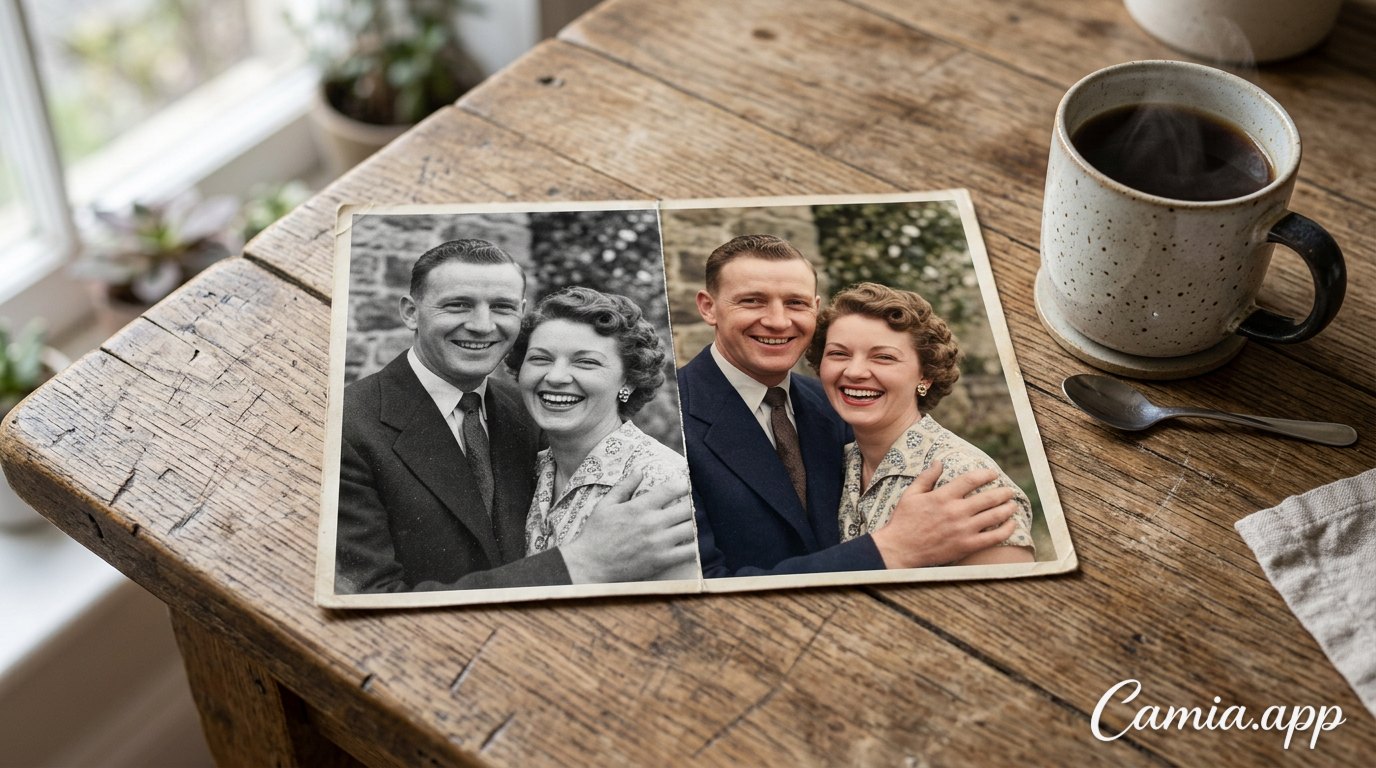
Grandpa in a suit. Grandma at the beach. A dog nobody remembers the name of. All in gray. Wouldn't they look amazing in color?
Good news: you can colorize black and white photos free, in your browser, in a few minutes. No Photoshop. No art degree. No cursing at a layer panel at midnight.
Let's do it.
 Old couple photo shown half in black and white and half colorized
Why Colorize Black and White Photos at All?
Black and white has its own magic. Nobody is saying it doesn't. But color does something different. It makes the past feel close.
When you see the actual blue of a dress or the green of a garden, the person stops being a historical figure. They become someone you could have had coffee with.
People colorize old photos for all kinds of reasons:
- To bring family photos back to life before a reunion
- To make a gift for parents or grandparents
- To prepare a photo for a memorial or a family tree
- To share old pictures on social media and finally get some likes
- Pure curiosity. ("What color was that car?")
And today the AI does most of the heavy lifting.
How Does AI Colorizing Actually Work?
Short version: the AI has learned from huge numbers of images what things usually look like. Skies tend to be blue. Grass tends to be green. Skin has certain warm tones.
It looks at your photo, recognizes faces, clothes, trees and buildings, and guesses sensible colors for each one.
Notice the word guesses. The AI can't know that your aunt's dress was exactly turquoise in 1964. It gives you a believable version. And if something looks off, you can fix it. We'll get to that.
Before You Start: Get a Good Starting Photo
The better the photo you upload, the better the colors. A blurry, crooked phone snap of a framed picture will give you a blurry, crooked result.
Scan It or Photograph It Properly
If you only have a paper print, you have two options:
- Use a scanner. This is the best option. A scan at a decent resolution captures lots of detail.
- Use your phone camera. Totally fine. Just do it right.
For phone shots, follow these tips:
- Place the photo on a flat surface near a window
- Use soft daylight. Avoid direct sun and flash, which cause glare
- Hold the phone parallel to the photo, not at an angle
- Fill the frame with the picture, but keep all the edges
- Tap the screen to focus before you shoot
Don't Panic About Damage
Scratches, creases, faded spots? Don't stress. Old photos usually come with some battle scars. CamIA can also help with those, and we'll cover it below.
How to Colorize Black and White Photos Free With CamIA
CamIA is a free AI photo editor that works right in your browser, on your phone or computer. You don't need to download anything. There are also Android and iOS apps if you prefer them.
Its old-photo restoration tool can fix scratches, sharpen faces and colorize black-and-white pictures. Here's the flow.
Step by Step
- Open camia.app in your browser (or open the app).
- Upload your photo. Pick the best scan or picture you have.
- Choose the old photo restoration option. This is where the colorizing lives.
- Let the AI work. It adds color and can also clean up scratches and sharpen faces.
- Check the result. Zoom in on faces, clothes and the background.
- Fine-tune if needed. Use the editing tools or describe a change in your own words (more on that next).
- Export. Download as JPG or PNG, or share straight to WhatsApp, Instagram or TikTok.
That's it. Seven steps, and the longest one is picking which photo to do first.
What About the Price?
CamIA gives you free points every month, so you can colorize and edit without paying. If you visit as a guest, you also get a few free AI tries to see how it works before you sign up.
Colors Look a Bit Off? Fix Them With Words
Here's where it gets fun. AI isn't a mind reader. Sometimes a jacket comes out brown when you know it was navy. Sometimes the sky is a little too enthusiastic.
CamIA lets you edit by describing what you want in plain language. You don't need technical terms. You just say it, the way you'd tell a friend.
Try prompts like:
- Make the dress red
- Make the sky a softer blue
- Make the jacket dark blue
- Make the grass look greener
If you know the real colors from family memory, this is gold. Ask your relatives! "What color was Abuela's dress?" can turn into a whole family story.
Skin Tones, Sky and Clothes: The Big Three
These three areas decide whether a colorized photo looks natural or looks like a wax museum.
- Skin tones: These should look warm and alive, not orange and not gray. If faces look too pink or too pale, adjust the warmth and saturation a little.
- Sky: A pale, slightly soft blue almost always looks more believable than a deep, bright one.
- Clothes: This is where you have the most freedom. Old clothes came in all sorts of colors, so you can't really be "wrong."
Fine-Tune With the Manual Editor
After the AI colorizes your photo, you can polish it with CamIA's full manual editor. It has the classic controls:
- Light and contrast to bring back depth
- Color and HSL to adjust individual colors, like making the greens less neon
- Curves for a more precise tone
- Detail to add crispness
- Crop to cut out torn borders or distracting edges
A tiny tweak goes a long way. Often a bit less saturation is all it takes to make the color feel right.
Pro Tips for Natural-Looking Color
Want results people can't stop staring at? Keep these in mind.
1. Less Is More
Old photos have a soft, gentle quality. If you crank up the saturation, you lose it. Aim for color that looks like a well-kept memory, not a candy wrapper.
2. Restore First, Colorize Second (or Together)
Scratches and fading can confuse the colorizing. Cleaning up the photo helps the AI "see" faces and objects more clearly. CamIA's restoration tool can handle both in one go.
3. Think About the Era
Colors in a 1940s photo feel different from a 1970s photo. Earlier decades often had more muted, earthy tones. If you want a period feel, don't over-brighten.
4. Zoom In Before You Save
Check hands, hair, eyes and backgrounds. If something looks strange, fix it with a quick prompt or manual tweak.
5. Keep the Original
Always keep a copy of your original scan. You'll thank yourself later. CamIA also has an undo history, so you can step back if an edit doesn't work out.
Beyond Color: Other Fun Things to Do With Old Photos
Once your photo has color, why stop there?
- Enhance it for sharper detail and better light
- Expand the photo beyond the frame if the original was cropped too tight
- Remove objects you don't want, like a stray person or a distracting sign
- Add a frame, text or stickers for a gift or a family album
- Try a film look, like a warm vintage preset, for extra nostalgia
Black-and-white lovers can even go the other way. CamIA has black and white presets too, if you ever want to switch back.
A Quick Word on Other Free Colorizers
There are lots of online tools out there. Some are great for a quick try. But with many free tools, you'll run into limits: smaller export sizes, watermarks or a very basic editor with nothing to fix a result that's close but not quite right.
That's why it's handy to have colorizing and editing in the same place. You colorize, you tweak, you export. Done. No jumping between five different sites.
FAQ
Can I really colorize black and white photos free?
Yes. CamIA gives you free points every month, and guests get a few free AI tries. That's enough to colorize some photos and see if you like the results. Check the app for how many points each action uses.
Do I need to download anything?
No. CamIA works in your browser on a phone or a computer. If you'd rather use an app, there are Android and iOS versions too.
Will the colors be historically accurate?
Not necessarily. The AI makes a smart, realistic guess, but it can't know the exact color of a shirt from decades ago. If you know the real colors, you can correct them by describing the change or using the manual color tools.
What kind of photo gives the best result?
A sharp, well-lit scan with good contrast. If your photo is blurry or damaged, use the restoration tools to fix scratches and sharpen faces first. You can do that in CamIA too.
Can I share my colorized photo right away?
Yes. You can export as JPG or PNG, up to the original resolution, and share straight to WhatsApp, Instagram or TikTok. You can also add the optional Camia.app signature if you want.
Time to Add Some Color
Those gray photos in the shoebox have been waiting long enough. You can colorize black and white photos free, in your browser, in just a few minutes, and the reaction from your family might be the best part.
Pick one favorite photo. Upload it. Watch the past turn into color.
Try CamIA free at camia.app and give your oldest memories a brand-new look.