How to Restore Old Photos on Phone Free in Minutes
Somewhere in a shoebox, an album or a drawer there's a picture of your grandparents on their wedding day, creased, faded and a little blurry. The good news: you no longer need a pro studio or expensive software to bring it back. You can restore old photos on phone free, using nothing but your camera and an AI editor that runs right in your browser. In this guide you'll learn how to digitize prints the right way, repair damage, sharpen faces, add color and even turn your restored pictures into gifts the whole family will fight over.
Why Old Family Photos Deserve a Second Life
Printed photos don't last forever. Light fades them, humidity stains them, and years of being stacked in boxes leave scratches, folds and white cracks. Every year that passes, they get harder to save.
Restoring them isn't only about making them look nice. It's about:
- Preserving memories of people who may no longer be with us.
- Identifying faces in the background that were too blurry to recognize.
- Sharing history with cousins, kids and grandkids through a simple chat message.
- Creating a digital backup so one spilled glass of water doesn't erase a whole generation.
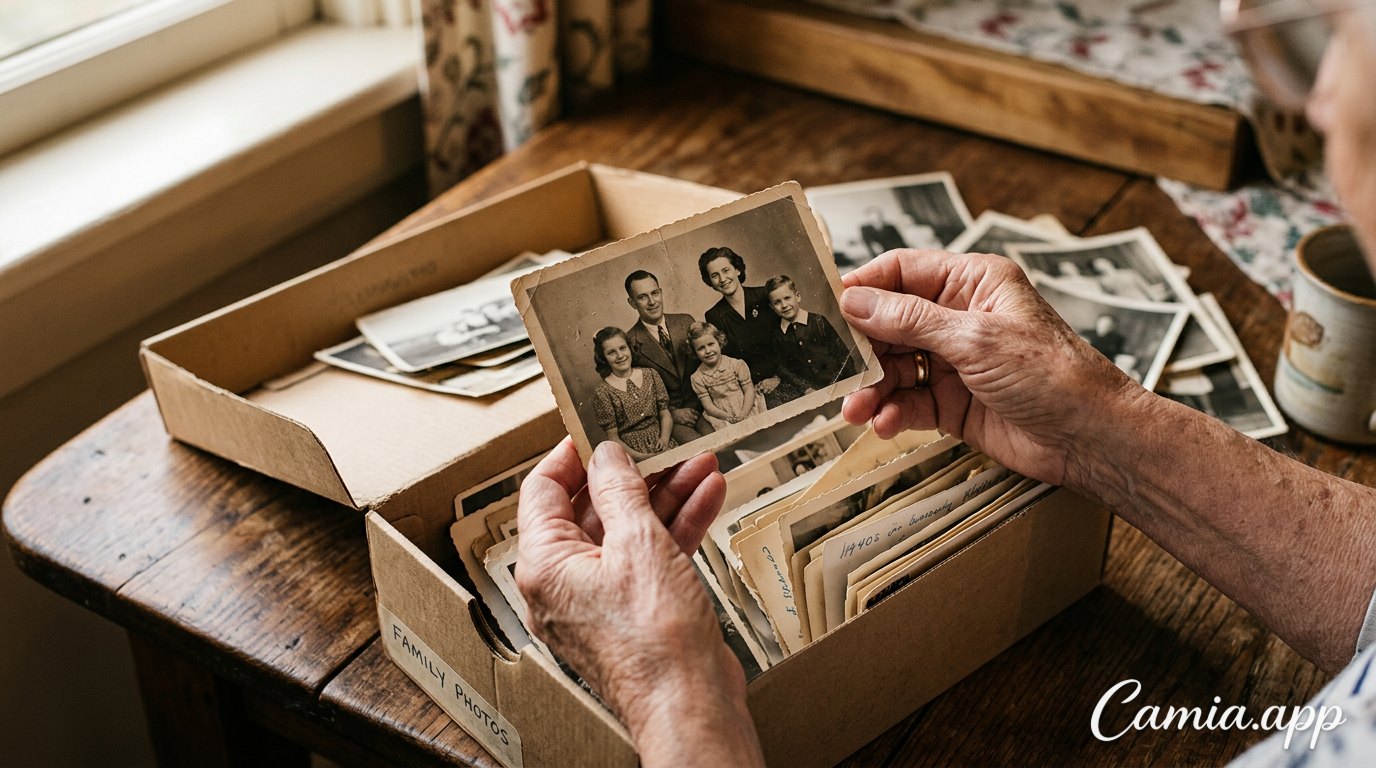
 Hands holding an old faded family photo next to a box of vintage pictures
Step 1: Digitize Your Old Prints the Right Way
The quality of your restoration depends heavily on the quality of your starting file. A bad phone snapshot with glare and shadows gives the AI less to work with. Spend five minutes on this step and everything after gets easier.
Find Soft, Even Light
Place the photo near a window during the day, but not in direct sun. Soft daylight avoids harsh shadows and keeps the colors honest. Skip the flash: it bounces off glossy paper and leaves a bright white spot right on someone's face.
Lay It Flat and Shoot Straight
Put the photo on a plain, dark or neutral surface like a table or a sheet of cardboard. If it's curled, place a clean sheet of glass or a heavy book on top for a moment, then remove it before shooting to avoid reflections. Hold your phone parallel to the photo, directly above it, so the edges don't look slanted.
Take More Than One Shot
Take two or three pictures from slightly different angles and keep the sharpest one. If you prefer a scanning app, that works too. Whichever you use, aim for the highest resolution your phone allows.
Don't Clean It Aggressively
A gentle puff of air or a soft dry cloth is enough to remove dust. Never rub or use water on old prints, because you can make the damage worse. Let the software handle the rest.
How to Restore Old Photos on Phone Free, Step by Step
Here's the simple process using CamIA, a free AI photo editor that works in your phone's browser (no download needed) and also as an Android and iOS app.
- Open CamIA at camia.app from your phone or computer.
- Upload your scanned or photographed picture.
- Choose the photo restoration tool to repair scratches, sharpen faces and, if you want, colorize black-and-white images.
- Review the result and compare it with the original. If something looks off, undo and try again.
- Fine-tune the look with the manual editor: light, color, contrast, crop.
- Export as JPG or PNG, up to the original resolution, and share it or save it.
CamIA gives you free monthly points, and guests get a few free AI tries, so you can test it on one photo before deciding how much you want to use it.
Fix Scratches, Tears and Faded Spots
The most common problems on old family photos are thin white lines, dust specks, cracks along folds and faded patches. The restoration tool is designed to clean up scratches and damage so the picture feels whole again.
A few tips to get better results:
- Start with the whole photo, not a tiny crop. The AI understands the scene better with full context.
- If a big tear crosses someone's face, try restoring first, then check the face closely and run it again if needed.
- For a stubborn stain or an unwanted object (like a stranger who wandered into the shot), the AI object remover lets you brush over it and erase it.
Sharpen Faces Without Making Them Look Fake
Faces are the heart of a family photo, and they're usually the first thing to suffer when a picture is small, soft or out of focus. CamIA can sharpen faces as part of the restoration process.
Keep it natural:
- Compare the result with the original. Does it still look like your great-aunt, or like a stranger?
- Don't overdo it. A slightly soft face that looks like the real person beats a plastic-looking one.
- If the first try feels too strong, undo and try a different version of the photo or a gentler enhancement afterward.
Colorize Black-and-White Photos
This is the step that makes people gasp. Colorizing a grandparent's portrait or a street scene from decades ago can make the past feel suddenly close.
Try colorizing, then use the manual editor to adjust:
- Warmth: nudge it warmer for a golden, nostalgic feel.
- Saturation: lower it a bit if the colors look too loud for the era.
- HSL controls: fine-tune skin tones, sky blues or the green of a garden.
Remember that colorization is an interpretation. If you know the real colors (a red dress, a blue car), you can use that knowledge to steer the final look. And if you prefer the timeless feel of black and white, you can keep a clean, sharpened black-and-white version too. CamIA has black and white presets for that.
Step 3: Finish With Light, Crop and Detail
Once the AI has done the heavy lifting, finishing touches make the photo look polished.
- Crop out the border, the scanner edge or the dark corner of the table. Free crop lets you choose any shape.
- Adjust light: old photos are often dull. Lift shadows slightly and add a bit of contrast.
- Use curves or the enhance tool to improve overall brightness and sharpness.
- Expand the photo if a person was cut off at the edge of the frame. CamIA can expand the picture beyond its original borders.
Save a copy of the untouched original, always. Your restored version is a new file, and the original print is the real treasure.
Creative Ideas for Your Restored Family Photos
Once you start, it's hard to stop. Here are some ways to give those restored pictures a purpose:
- A family tree wall: restore one portrait per ancestor and print them in matching frames.
- A surprise for parents or grandparents: show them their wedding photo restored and colorized. Keep tissues nearby.
- A shared digital album: send the restored photos to relatives on WhatsApp so everyone can add names and stories.
- Then and now: put a restored childhood photo next to a recent one of the same person or place.
- Photo to art: turn a cleaned-up portrait into a watercolor or cartoon style for a gift.
- Holiday cards and calendars: use a different restored photo for each month.
- Add a caption: use CamIA's text tool to add a name and year directly on the picture so the story travels with it.
Common Mistakes to Avoid
- Starting with a tiny, compressed image. A photo forwarded ten times on a chat app has already lost detail. Whenever you can, scan the original print.
- Restoring once and deleting the original. Keep both.
- Pushing every slider to the max. Subtle edits age better.
- Skipping the final check. Zoom in on faces, hands and text after the AI edit to make sure everything looks right.
- Ignoring metadata. Write names, dates and places in the file name or the album description. Future generations will thank you.
FAQ
Can I really restore old photos on my phone for free?
Yes. With CamIA you can use the restoration tools from your phone's browser or the app, and you get free monthly points to use on AI edits. Guests also get a few free AI tries, so you can see how it works before committing to anything.
Do I need to download an app?
No. CamIA runs in your browser on both phone and computer, so you can open camia.app and start right away. If you prefer an app, there are Android and iOS versions.
What's the best way to photograph an old print?
Use soft daylight, avoid flash, lay the photo flat and keep your phone parallel to it. Shoot at the highest resolution possible and pick the sharpest picture. A clean, straight, well-lit capture gives much better restoration results.
Can the AI colorize my black-and-white family photos?
Yes, CamIA can colorize black-and-white photos as part of its restoration tools. Colors are an AI interpretation, so you can fine-tune them afterward with the manual editor, or keep a black-and-white version if you like the classic look.
Will the restored photo keep its original quality?
You can export as JPG or PNG up to the original resolution of the file you upload. The better your starting scan, the better the final result.
Start Bringing Your Family History Back to Life
That faded photo in the drawer doesn't have to stay faded. Scan it with good light, let AI clean the scratches, sharpen the faces and add color, then finish with a few gentle edits. In less than an hour you can restore old photos on phone free and share pieces of your family history that were nearly lost.
Ready to try it? Open CamIA, upload your first old photo and see what comes back to life.